
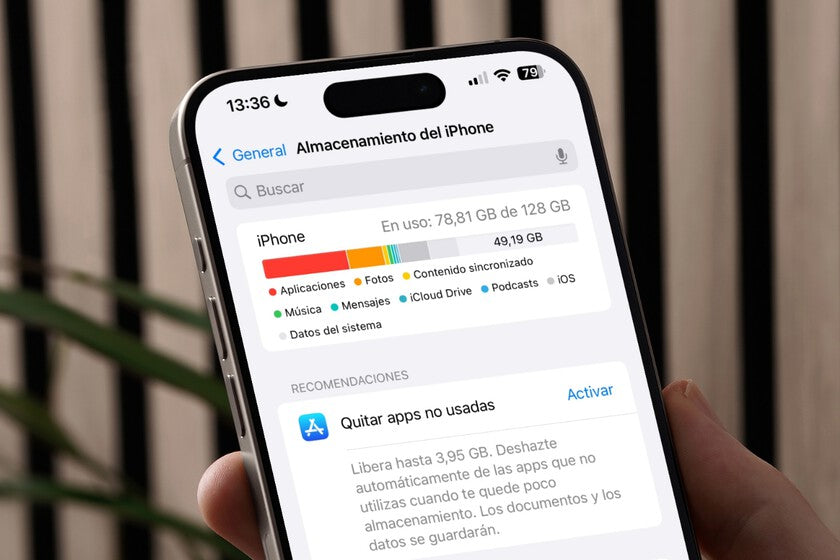
If you've been using an iPhone for a while, you know the real problem isn't running out of space, but not knowing how to manage it. That "Storage Full" notification doesn't have to be a headache. I've learned to optimize my iPhone intelligently, and I'm going to show you the tricks I use so you never have to delete your memories again because of lack of space.
Understanding the Problem

First, it's essential to understand what's taking up so much space. Photos, videos, and apps are usually the most common culprits. System files also accumulate and tend to grow over time.
- How do I check my storage space? On your iPhone, go to Settings > General > iPhone Storage . Here you'll see a clear breakdown of what's taking up space on your device.
Practical Tips for Optimizing Storage
1. Manage Photos and Videos
Why is this important? Photos and videos are priceless memories, but storing them in 4K can quickly consume gigabytes.
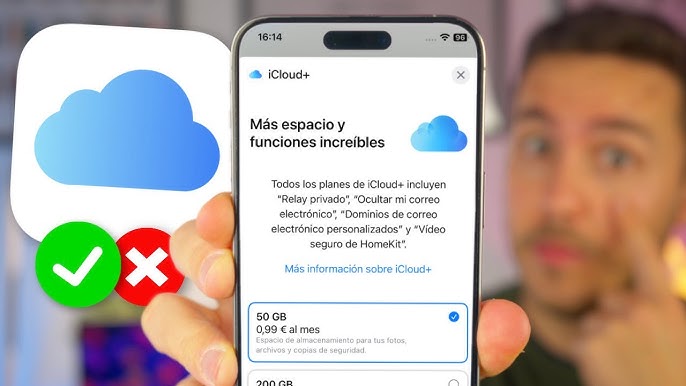
- Using iCloud: Enable iCloud Photos to upload your media to the cloud. Adjust the settings to Optimize iPhone Storage , storing only locally compressed versions.
- Remove duplicates and unnecessary screenshots: Periodically review your albums to get rid of duplicates and screenshots you no longer need.
2. Uninstall Unnecessary Apps
Why do I delete apps? Even apps you don't use can store data and receive updates.
- Review your app usage: Go back to Settings > General > iPhone Storage and view the apps you use least. Consider temporarily deleting them; you can always download them again from GSMPro .
- Automatically store apps: Turn on Uninstall Unused Apps to allow your iPhone to remove apps you haven't used in a while, preserving your documents and data for future reinstallation.
3. Clear Caches and Temporary Files
Why clear caches? Apps like Safari and Twitter store cached data that can grow over time.
- Clean up Safari: Go to Settings > Safari > Clear History and Website Data to free up space by deleting caches and cookies.
4. Use Storage Alternatives

Why change your storage? Sometimes you simply need more space, and that's normal.
- Refurbished Models: Consider purchasing a model with more storage, such as the Refurbished iPhone 13 Pro Max or Refurbished iPhone 14 Pro , available at GSMPro .
5. Configure Messages
Why are messages important? Messages and their attachments accumulate quickly.
- Delete old messages: Go to Settings > Messages and configure your messages to be deleted after one year or 30 days.
Ask Yourself a Question
I hope these tips are helpful and easy to implement in your daily life. I'm always looking for new ways to optimize my iPhone experience. What tips do you have to share about managing storage on your iPhone? Leave your comments below; I'd love to learn from your experience too.
To explore more options and find the iPhone that best suits you, visit the complete collection of iPhones at GSMPRO .
Thanks for reading, and I hope these tips help you enjoy your device more, without storage restrictions!