
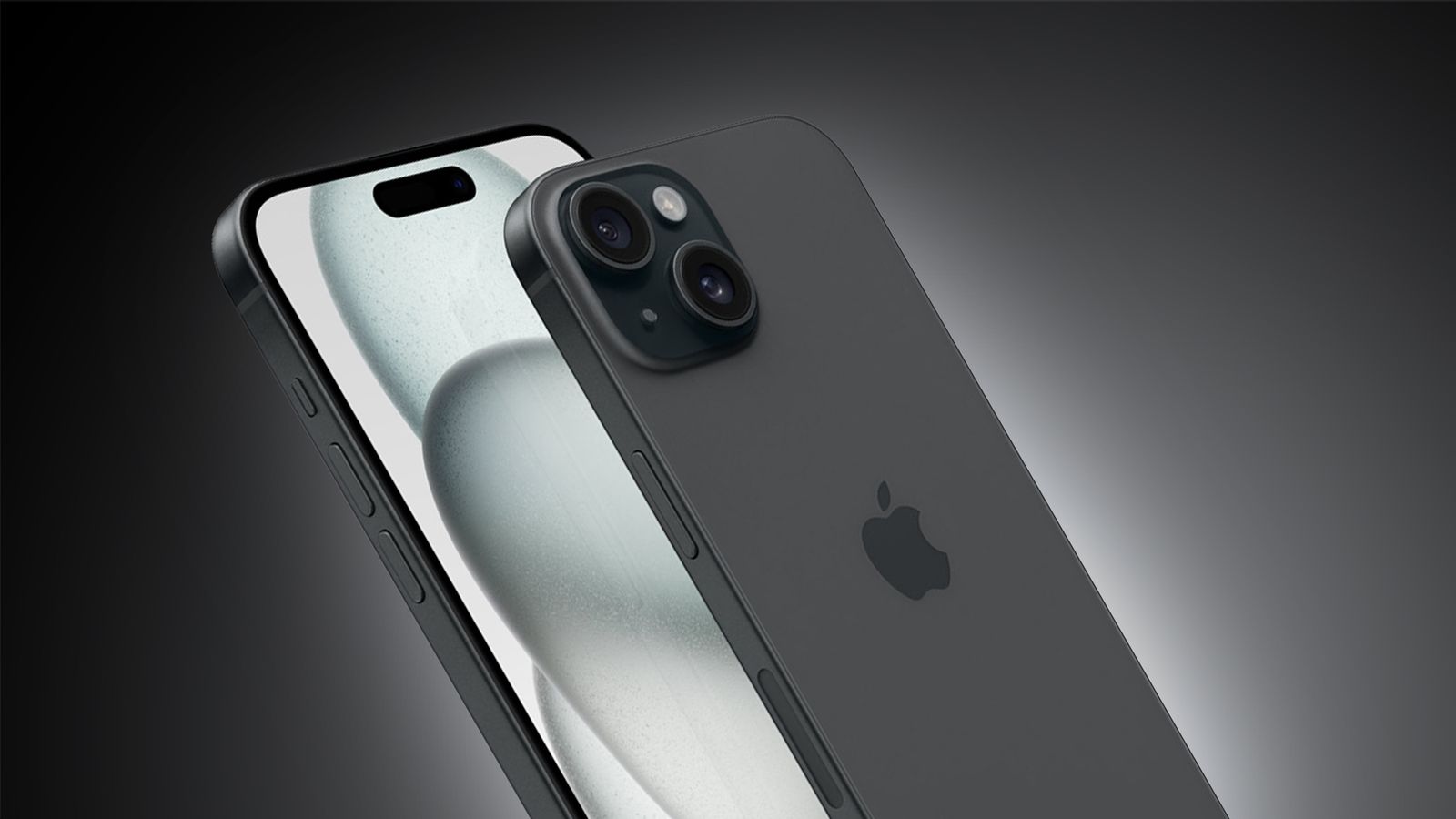
Sure, your iPhone takes great photos and is super fast, but you already know that. As an Apple fan from the very beginning, I've discovered that the real magic of the iPhone lies in the details that go beyond the obvious. Instead of boring you with technical details, I want to share five real, user-to-user tips that have improved my daily routine. Get ready to unlock your phone's true potential.
Tip 1: Use Face ID or Touch ID to the fullest

How? Personalize and add multiple appearances or fingerprints. For example, if you use Face ID, you can register a second appearance with sunglasses or in different lighting conditions.
Why? This ensures you unlock your iPhone quickly and efficiently in any situation. When I first started using the iPhone 13, I realized how important this feature was. Now that I'm using the iPhone 17 Pro, Face ID is more accurate than ever. Learn more about the iPhone 13 and iPhone 17 Pro .
Suggestion 2: Optimize your battery with Smart Charging
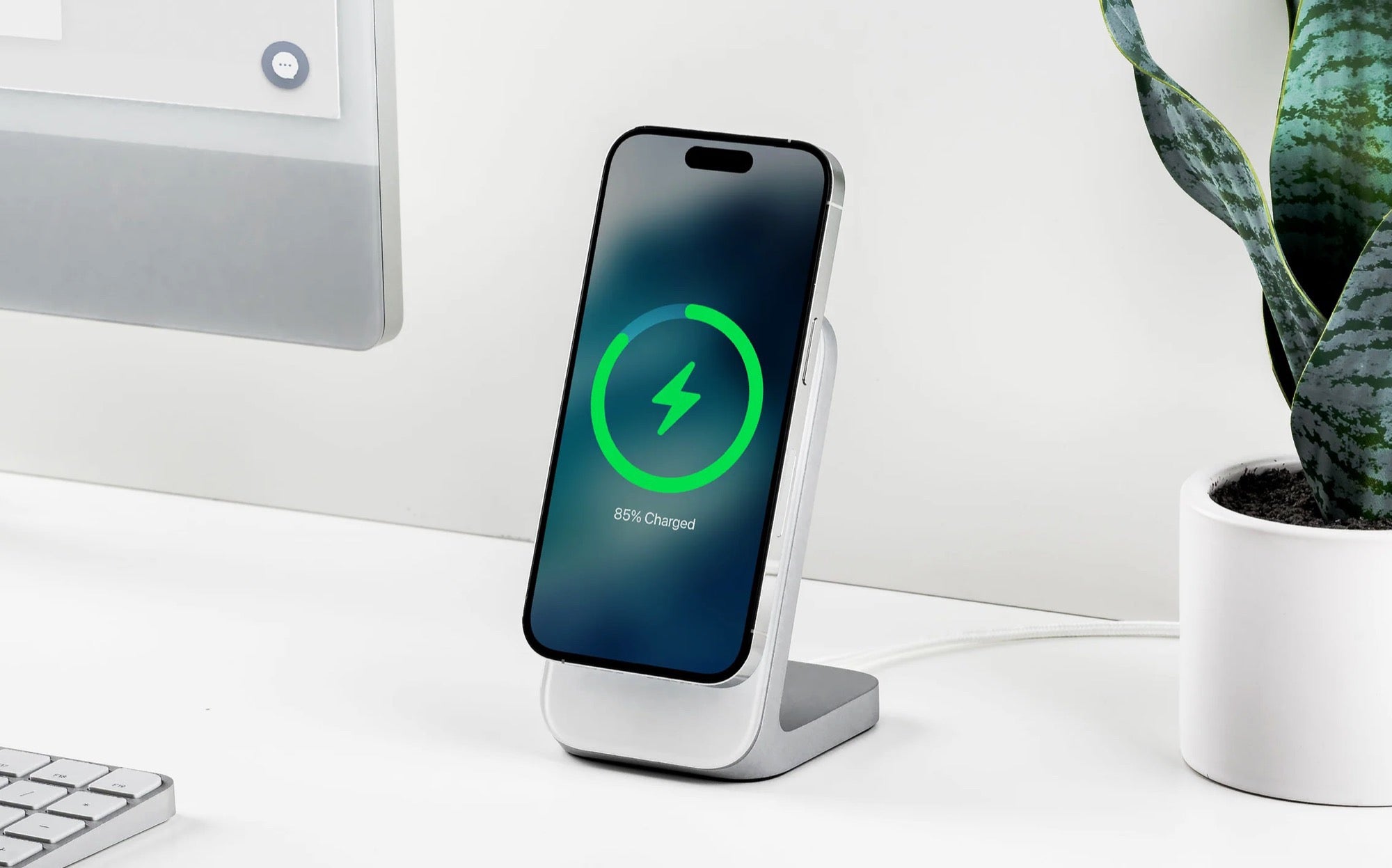
How? Activate “Optimized Charging” in Settings > Battery > Battery Status.
Why? By turning this option on, your iPhone learns your daily charging routine and automatically adjusts the charging frequency. This extends battery life. When I started using this feature on my iPhone 15 Pro, I saw a significant improvement in battery longevity. I've realized that I take better care of my iPhone simply by adjusting one minor setting. Discover the iPhone 15 Pro .
Suggestion 3: Take advantage of Automatic Updates
How? You can enable automatic updates in Settings > General > Software Update > Automatic Updates.
Why? Keeping your iPhone updated not only gives you access to the latest features, but it also keeps your device secure. I learned this lesson when I initially neglected to keep my iPhone 6s updated and missed out on significant performance improvements. Since then, automatic updates have been a lifesaver.
Tip 4: Use AirDrop for Fast Transfers
How? Simply select the file you want to share, click "Share," and choose AirDrop.
Why? It's the easiest and fastest way to share photos, documents, and more between Apple devices. I've saved myself a lot of time and effort using AirDrop between my iPhone and MacBook, especially when speed is essential.
Suggestion 5: Configure Accessibility Shortcuts
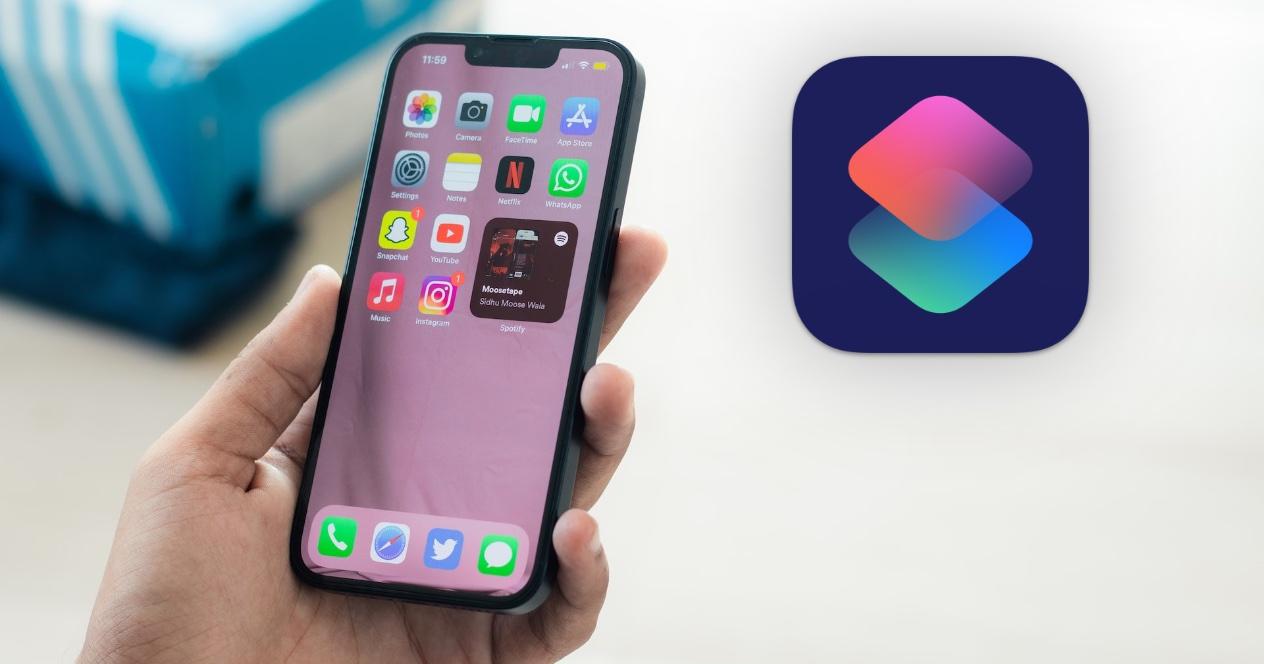
How? Go to Settings > Accessibility and turn on “Accessibility Shortcut”.
Why? It lets you quickly access useful features, like the magnifier. Setting up these shortcuts on my iPhone 16 Pro gave me a fast track to the tools I use most, increasing my daily efficiency. Explore the iPhone 16 Pro .
There you have it! Five simple suggestions that, in my experience, can radically change how you use your iPhone. I hope you try at least one of them and find them as useful as I have.
And you, do you have any tips you'd like to share? I'd love to hear how you use your iPhone to make your day-to-day life easier. If you're interested in exploring more models, visit the iPhone collection .
See you next time! 🎉